Umbrel
umbrelOS is a self-hosting operating system designed to run on your own hardware. Fedimint is available as an app — installation takes a few clicks and you'll be ready to run a federation.
Prerequisites:
- Access to an umbrelOS instance
Install Fedimint
Open the App Store
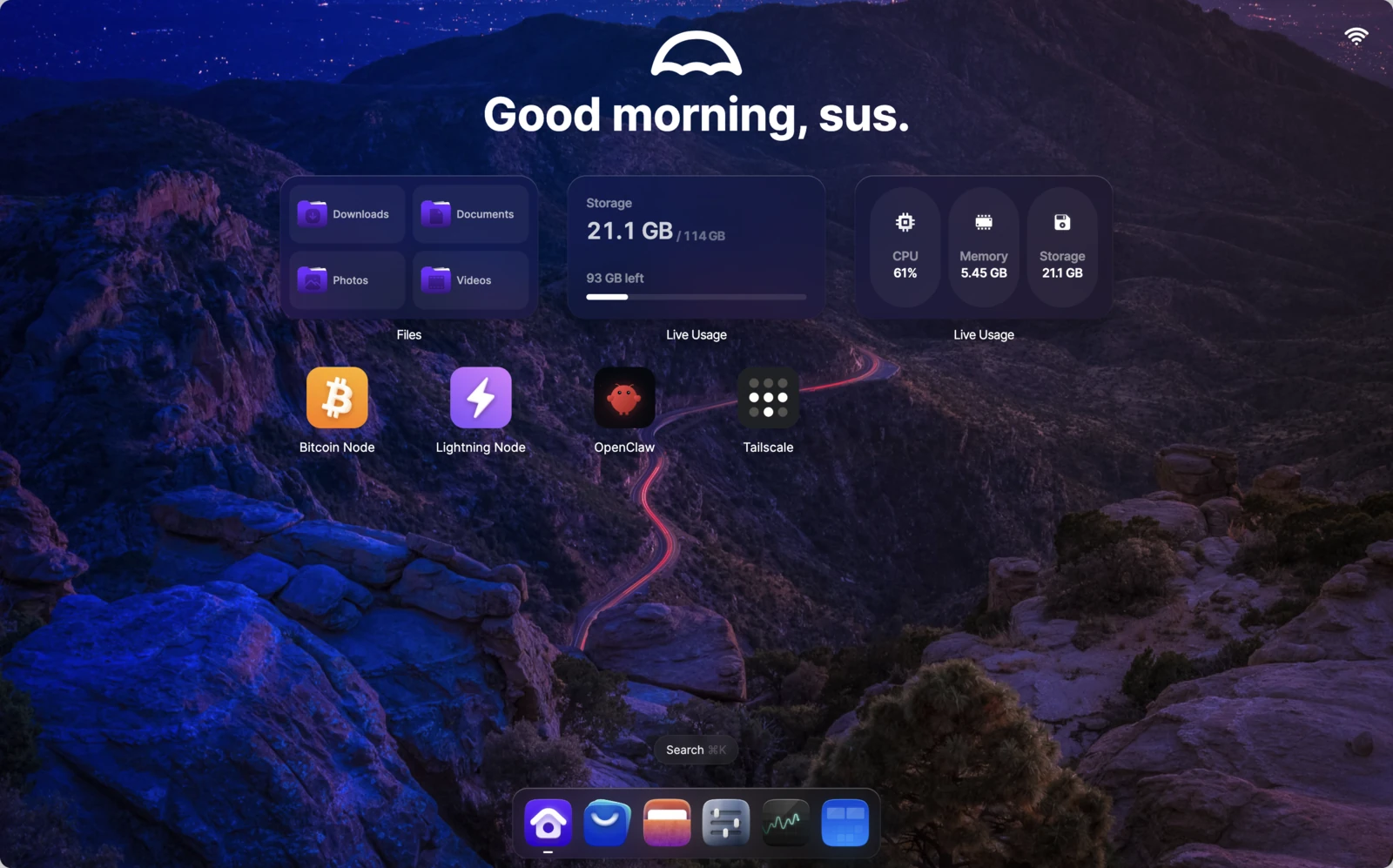
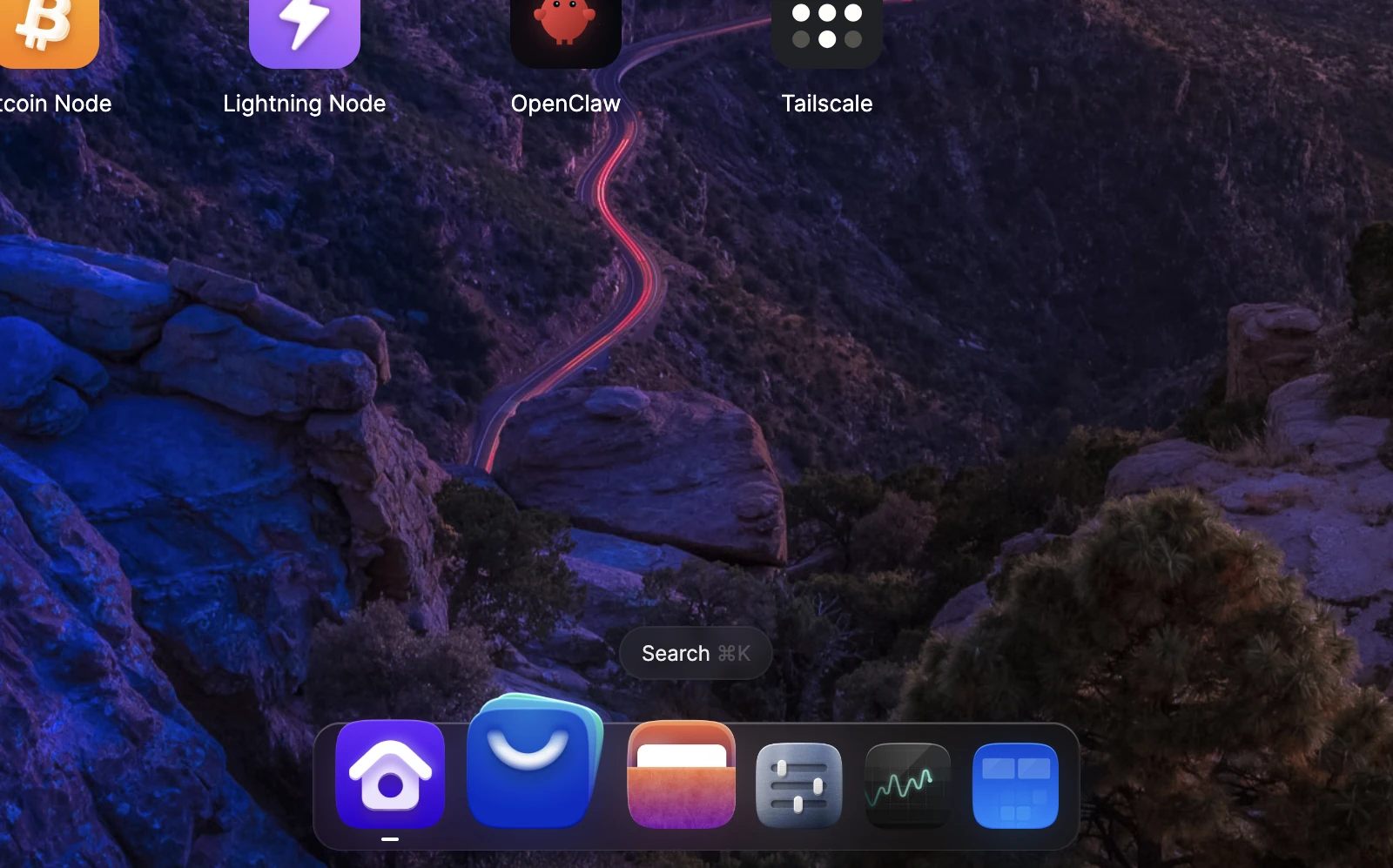
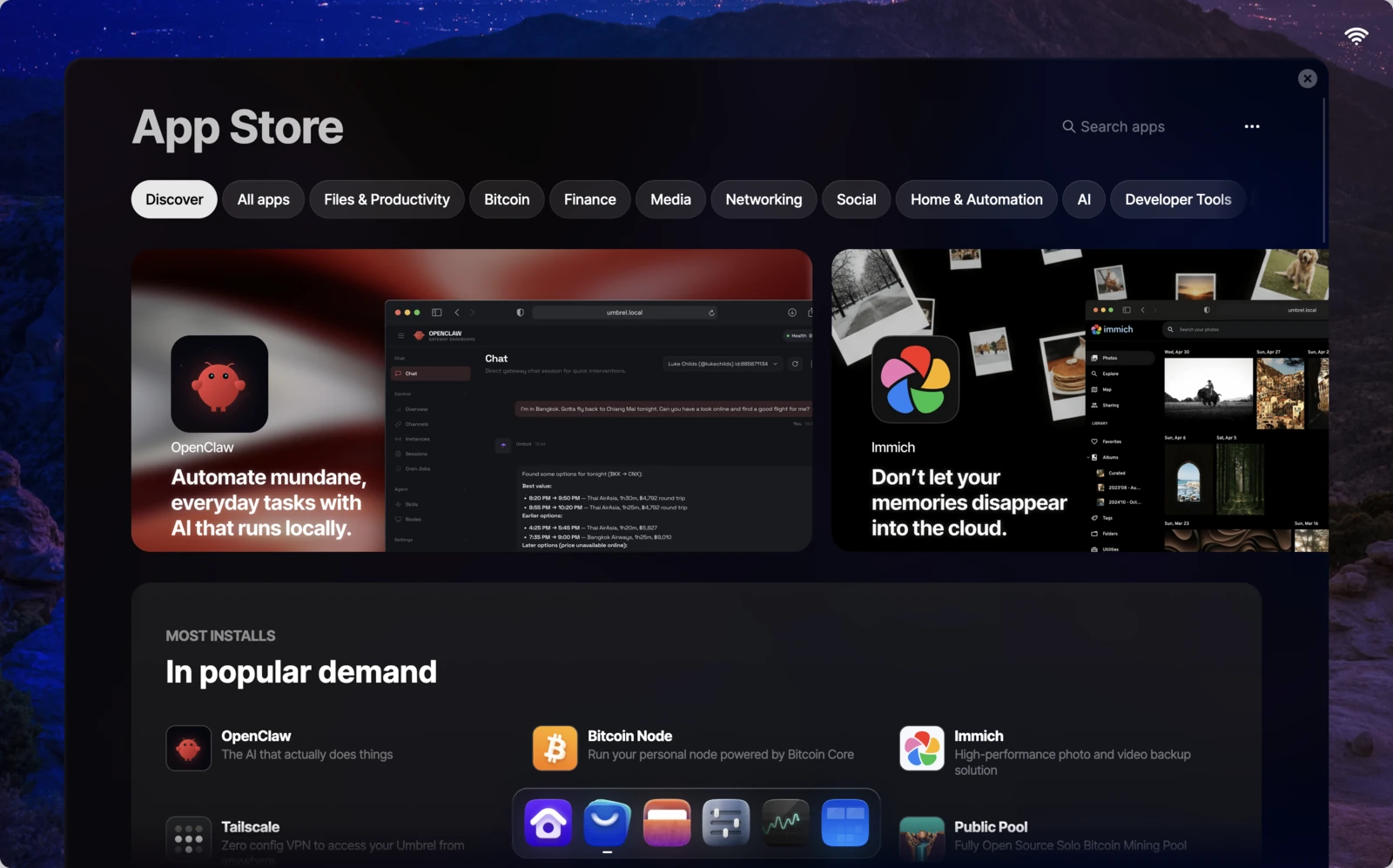
From your Umbrel home screen, open the App Store from the dock at the bottom of the screen.
Find Fedimint
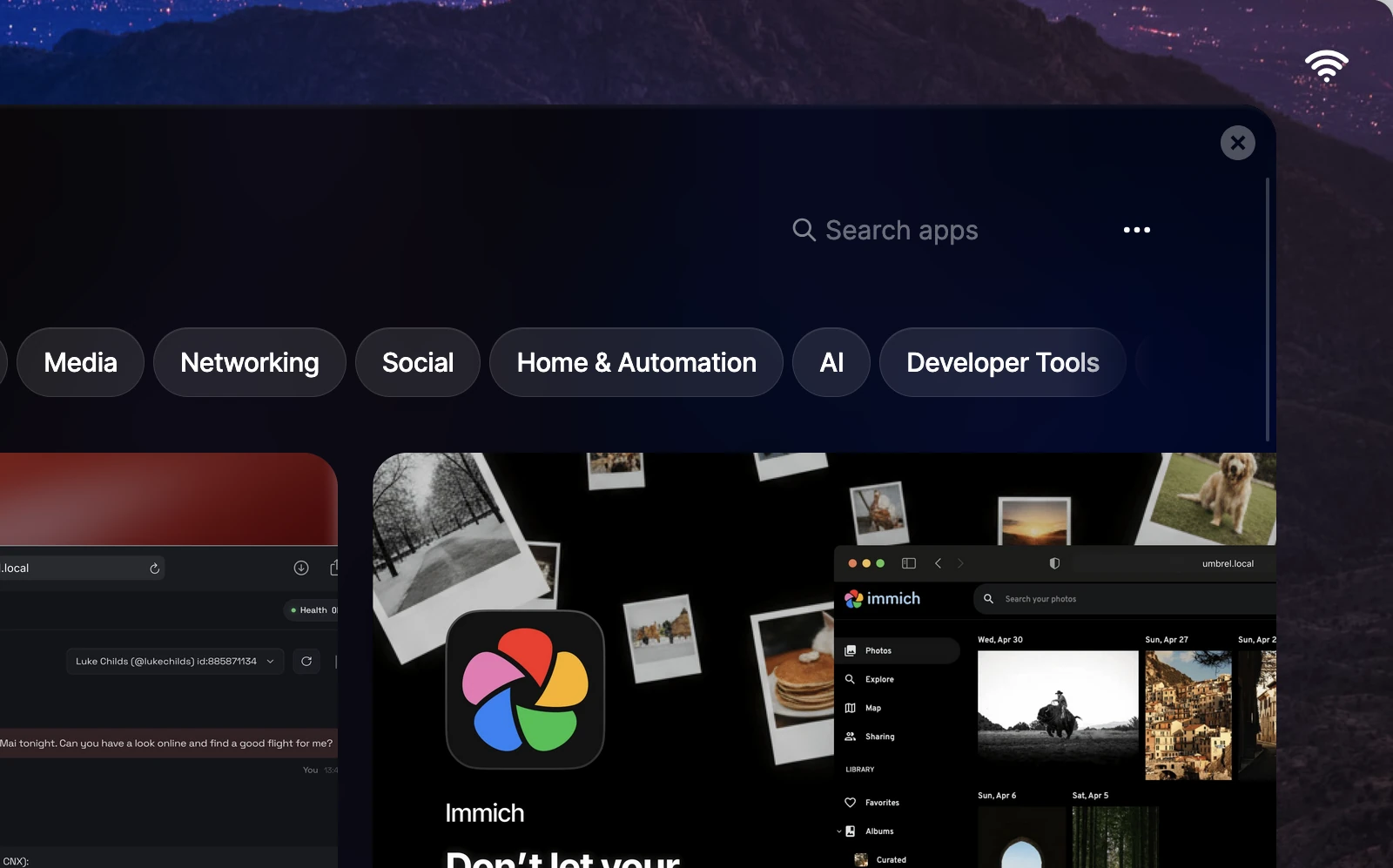
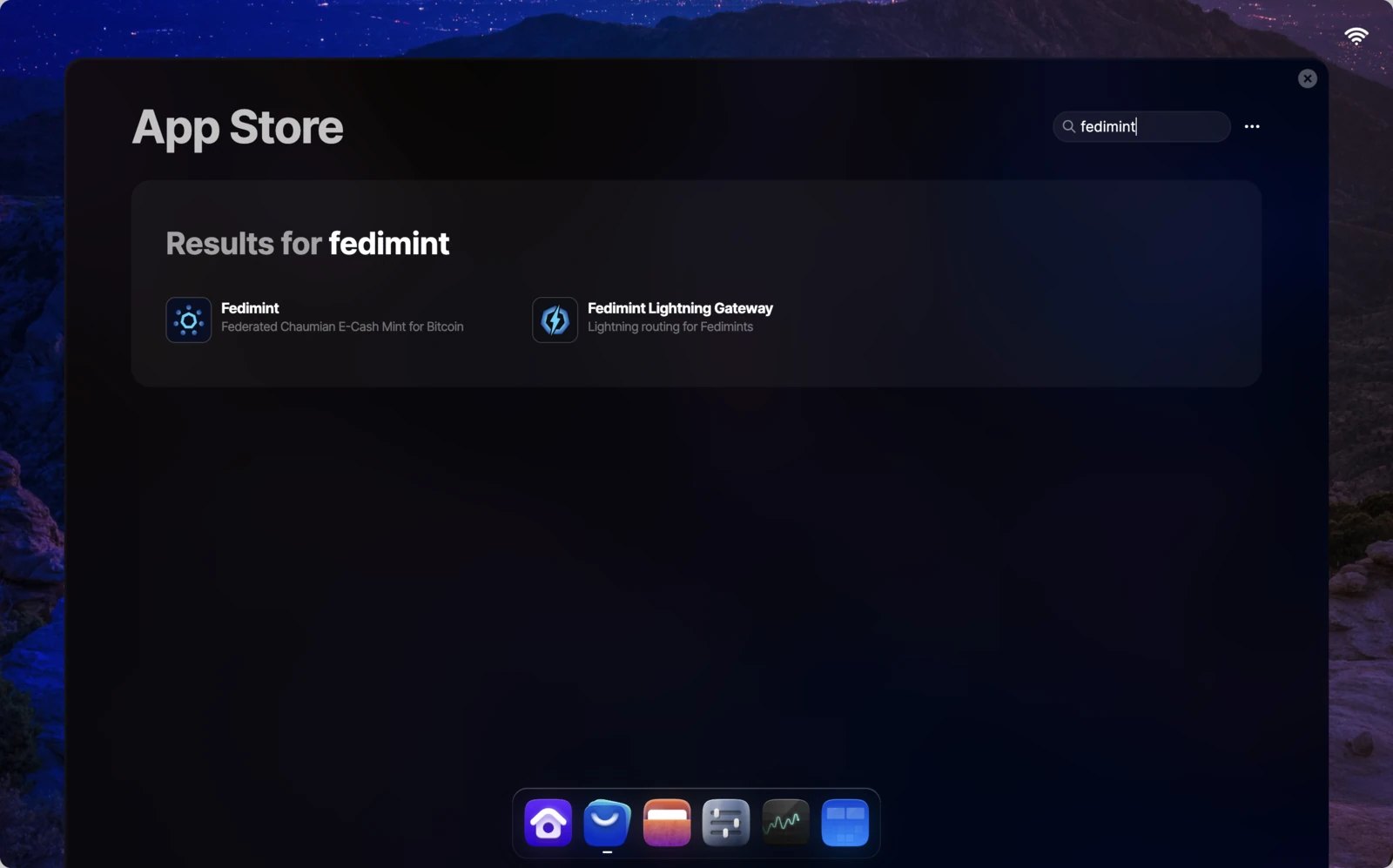
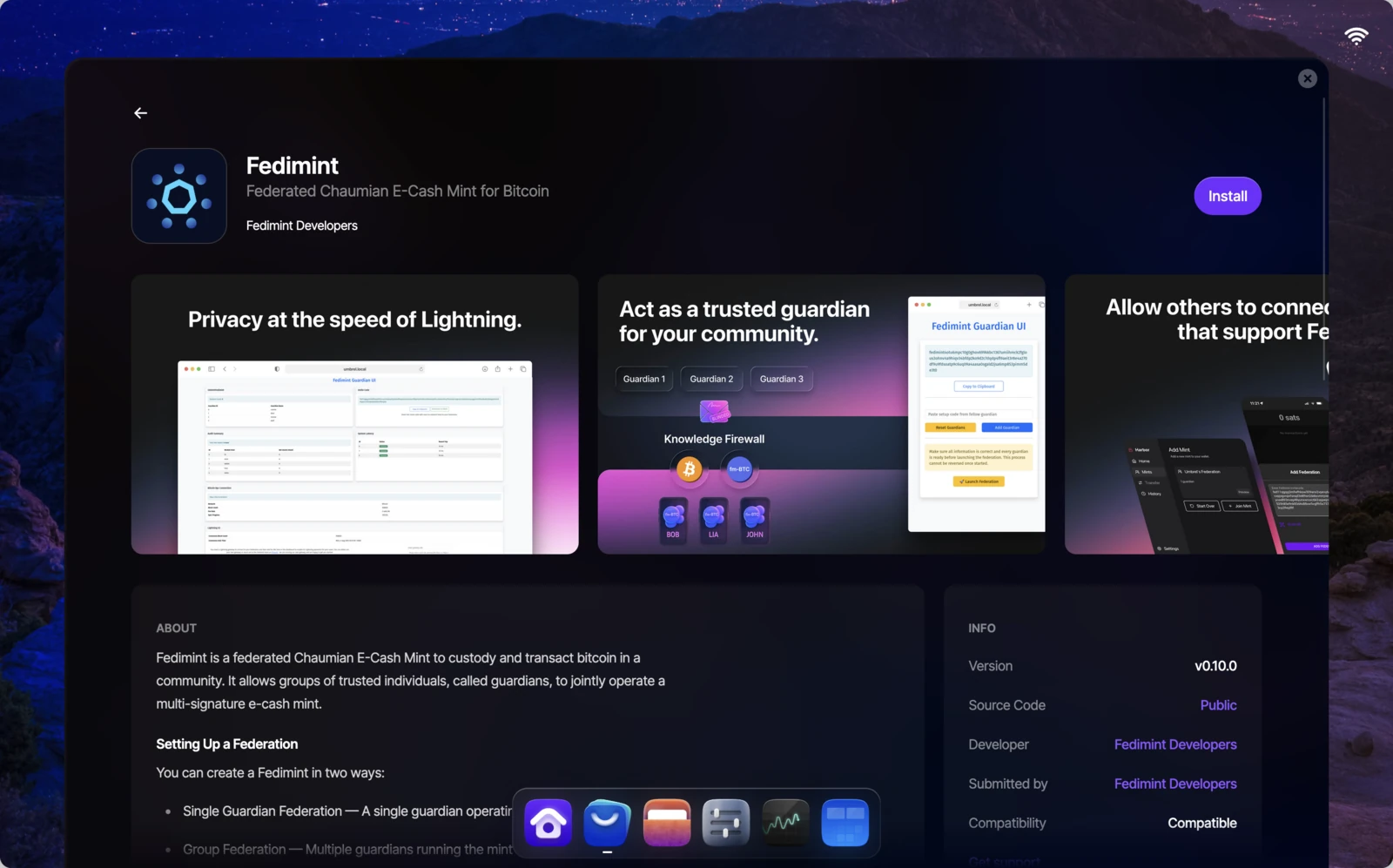
Search for fedimint. You'll see two results: Fedimint (the guardian node) and Fedimint Lightning Gateway. Select Fedimint to open the app page.
Install
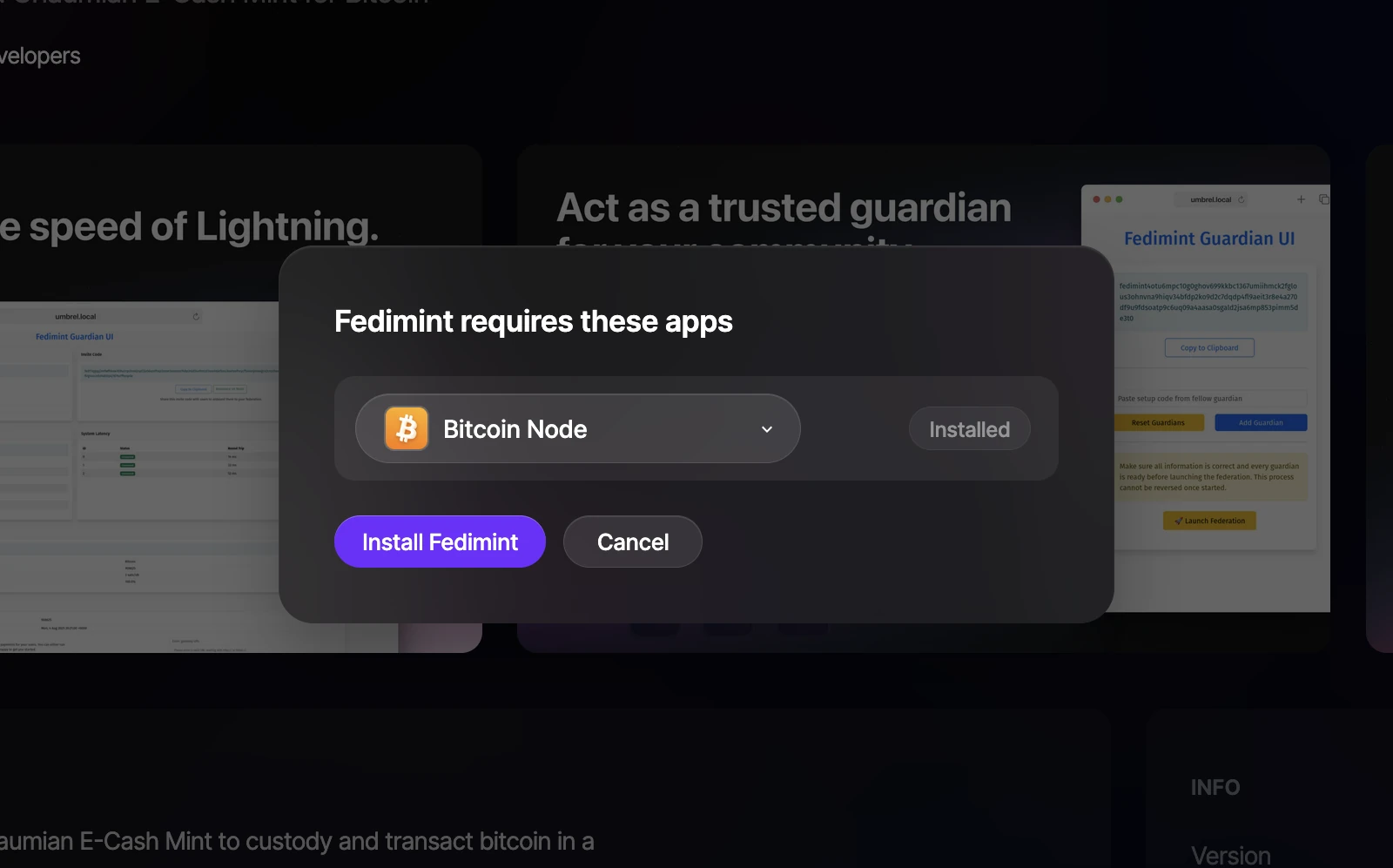
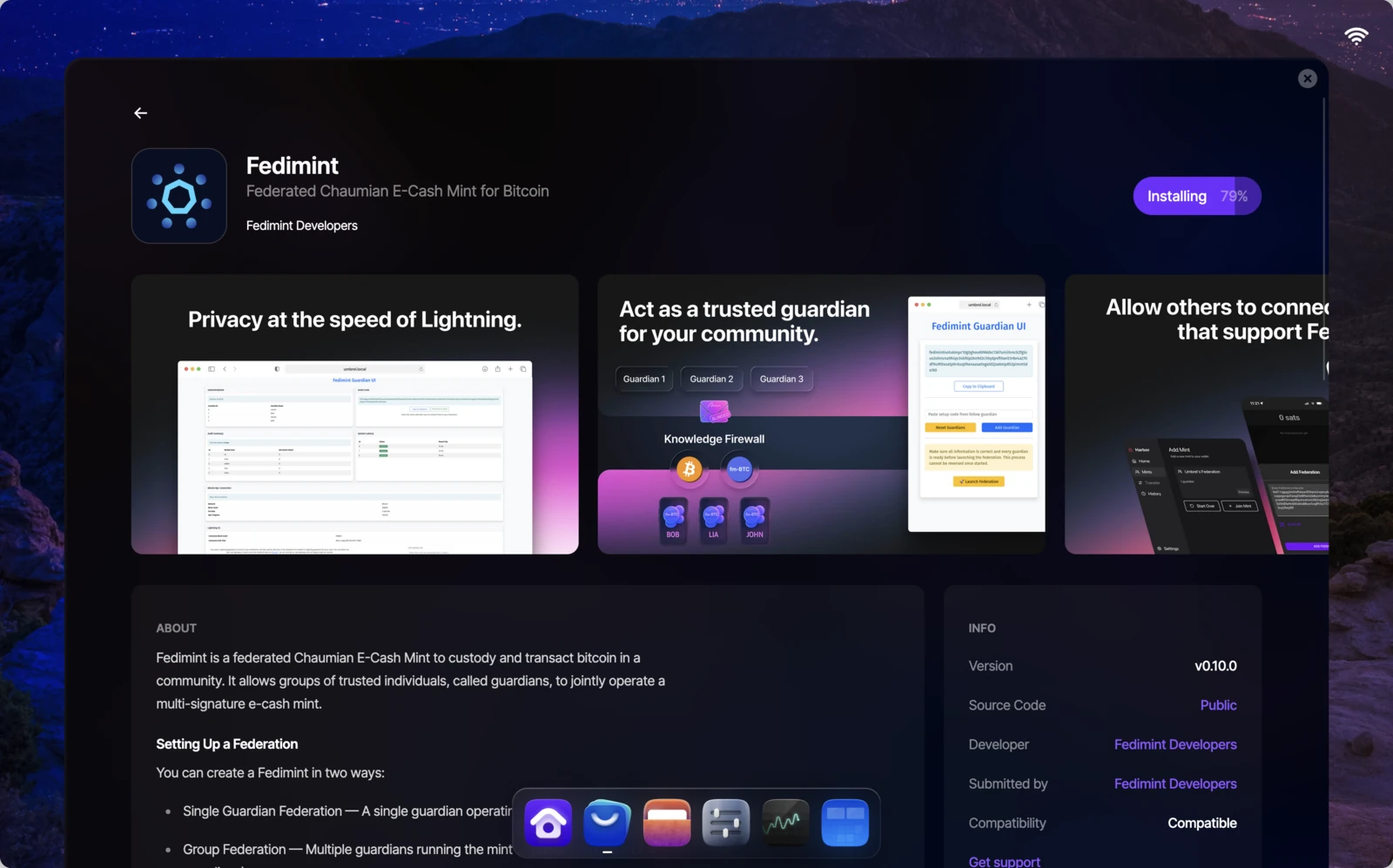
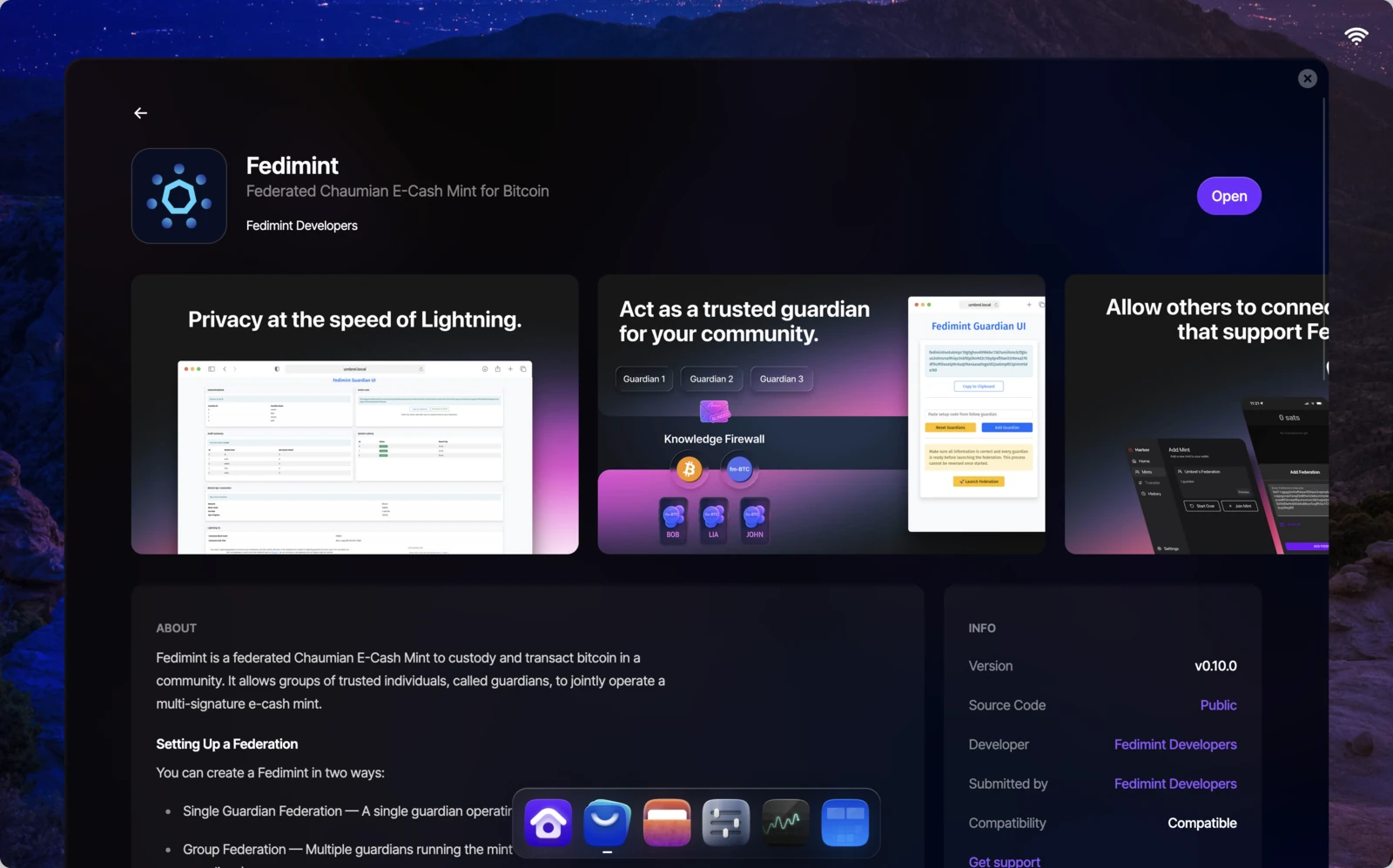
Click Install. Fedimint requires a Bitcoin node — if one is already installed, confirm and continue. If not, you'll need to install a Bitcoin node app first (e.g. Bitcoin Node) from the App Store and return here. Once installation completes, the button changes to Open.
Fedimint requires the Bitcoin node to be fully synced before it can operate. If you just installed a Bitcoin node, initial sync may take hours to days depending on your hardware. This does not apply if you configure Fedimint to use an Esplora API instead.
Open the Guardian UI
Launch Fedimint
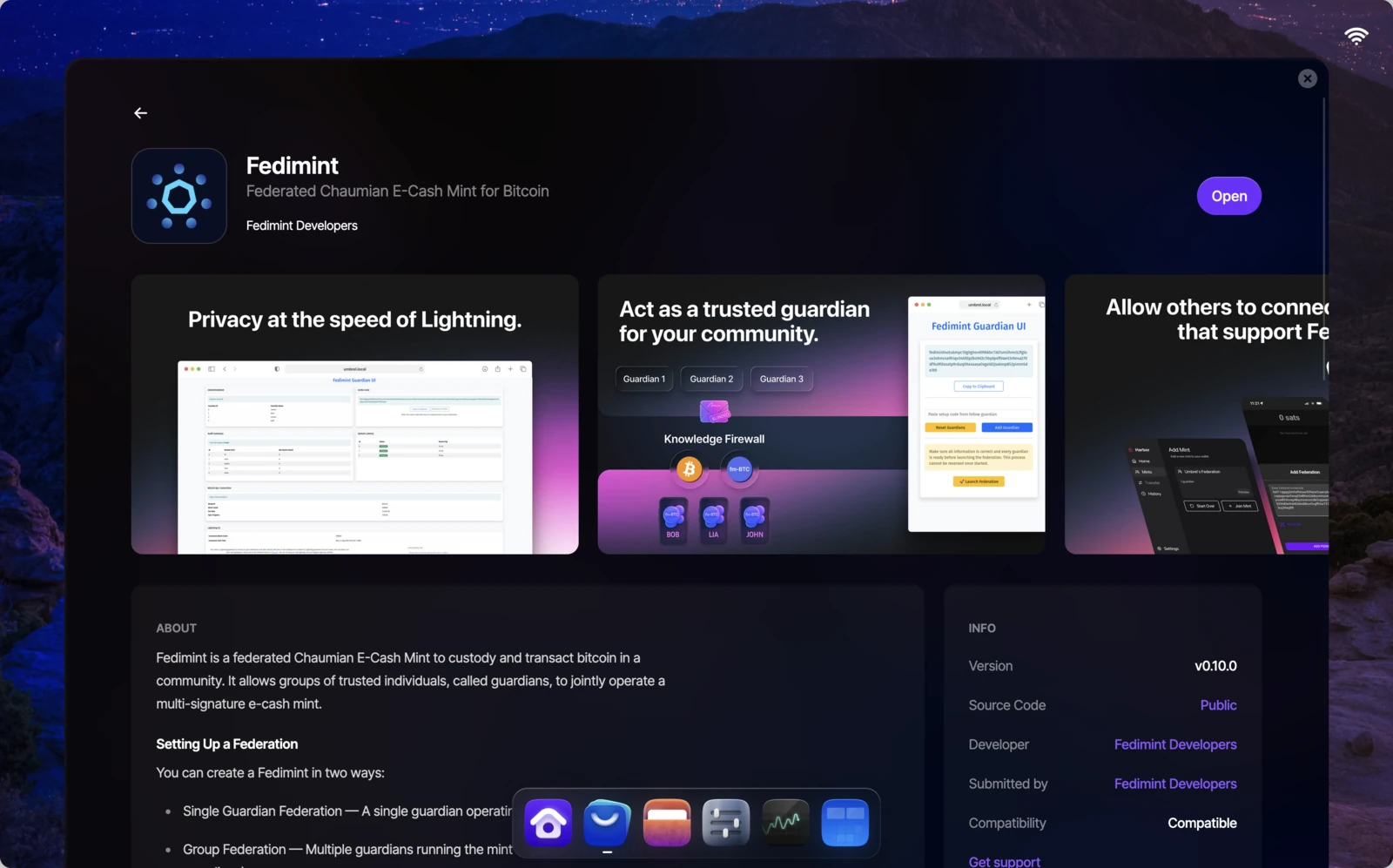
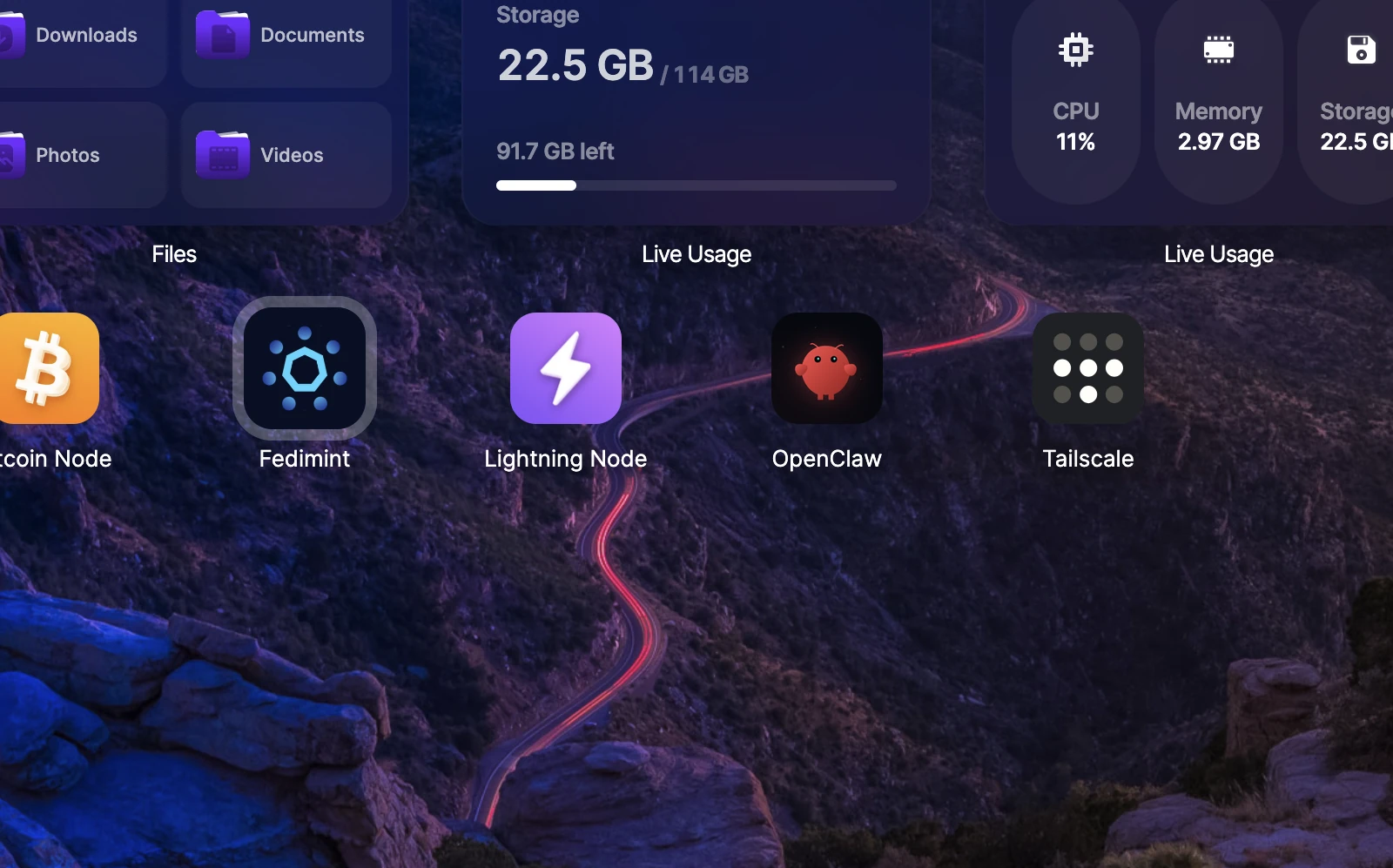
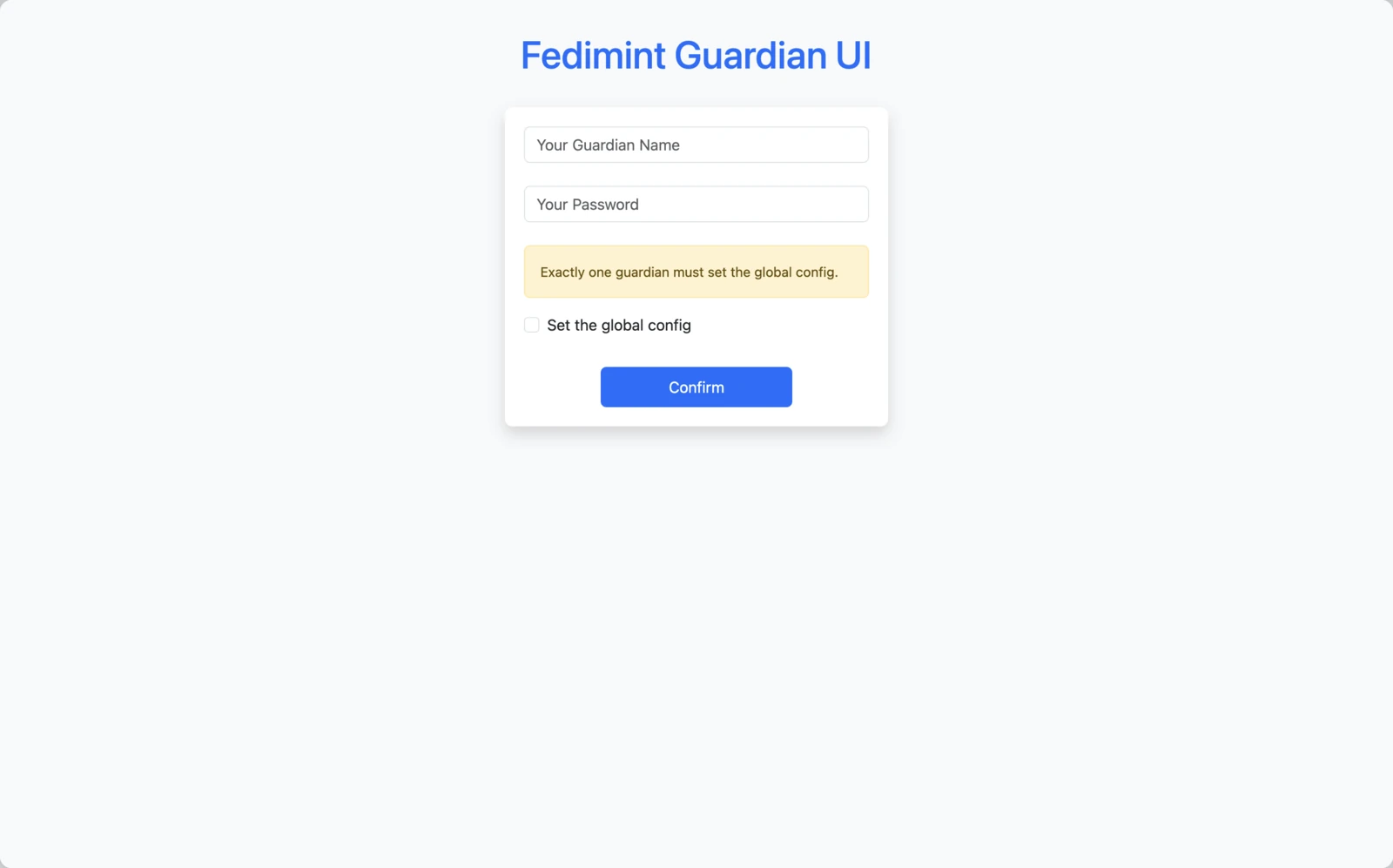
Click Open on the app page, or click the Fedimint icon on your home screen. This opens the Guardian UI — the web interface you'll use to set up and manage your federation.
The first time you open Fedimint, the Guardian UI walks you through the founding process. Follow the Founding a Federation guide to complete this with your co-guardians.
Operate Fedimint
Right-click the Fedimint icon on your home screen to access all management options.
Management controls
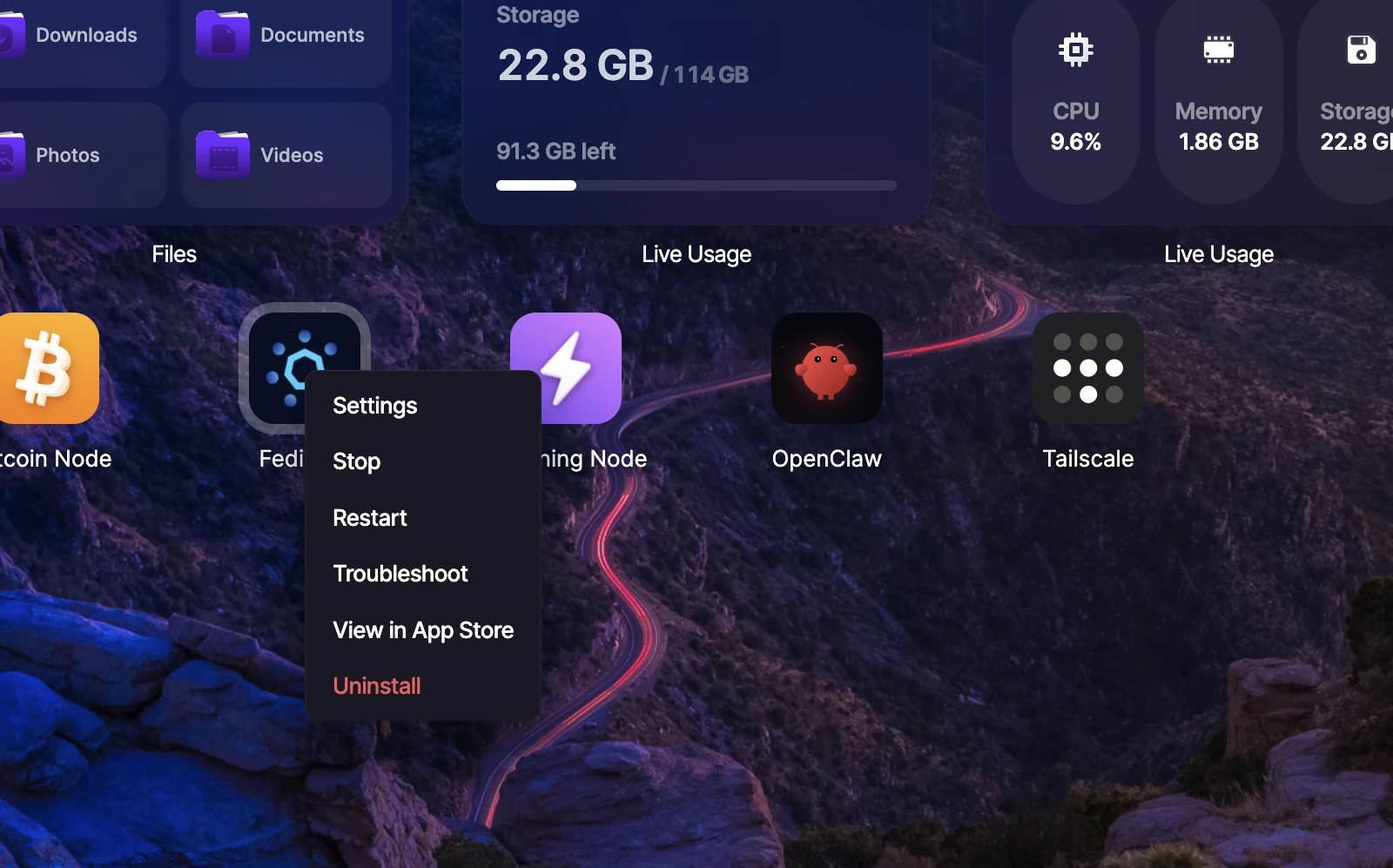
The context menu gives you quick access to everything:
- Settings — view and change the connected Bitcoin backend
- Stop / Restart — stop or restart the Fedimint service
- Troubleshoot — view logs and download them for debugging
- Uninstall — remove Fedimint and all its data
Change configuration
Bitcoin backend
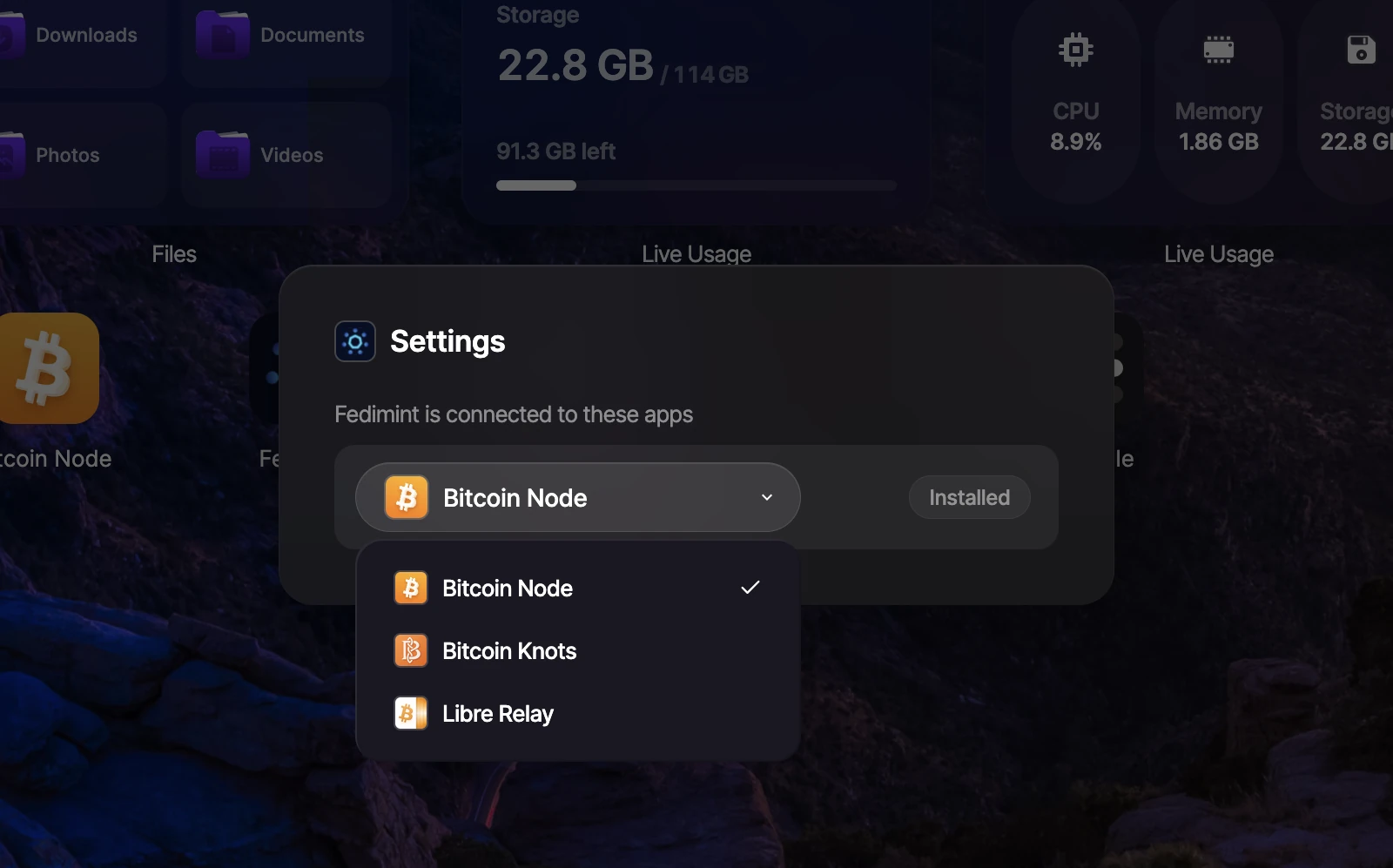
Select Settings from the context menu to see which Bitcoin backend Fedimint is connected to. You can switch between Bitcoin Node, Bitcoin Knots, or Libre Relay using the dropdown.
View logs
Troubleshoot
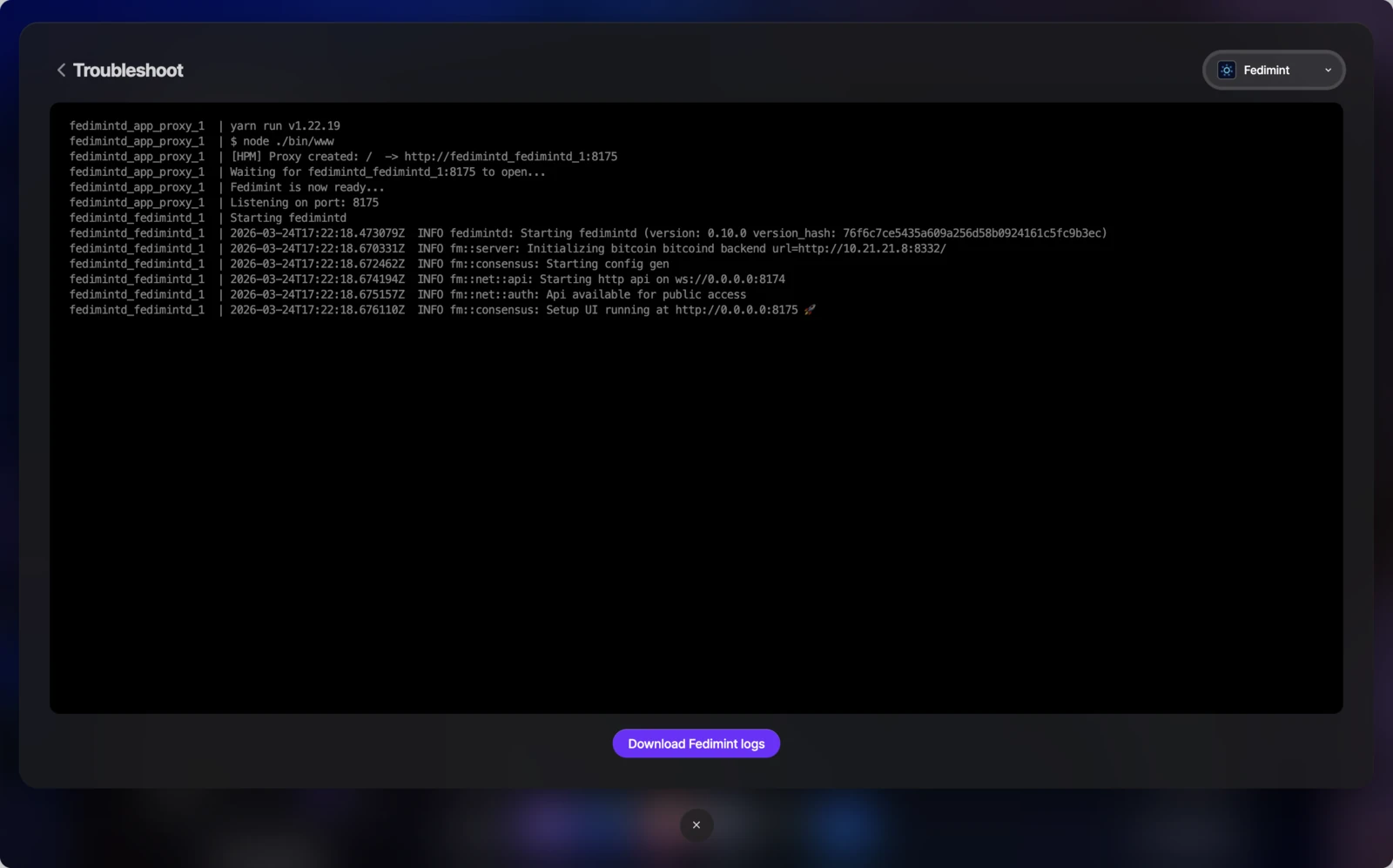
Select Troubleshoot from the context menu to view live service logs. Use the Download Fedimint logs button at the bottom to export them.
Remove Fedimint
To uninstall, right-click the Fedimint icon and select Uninstall.
Uninstalling permanently deletes all Fedimint data including federation keys. Make sure you have coordinated with your co-guardians before removing a guardian node.
Advanced access
For advanced debugging, Umbrel provides terminal access to both the Fedimint container and the underlying umbrelOS system.
Open the terminal
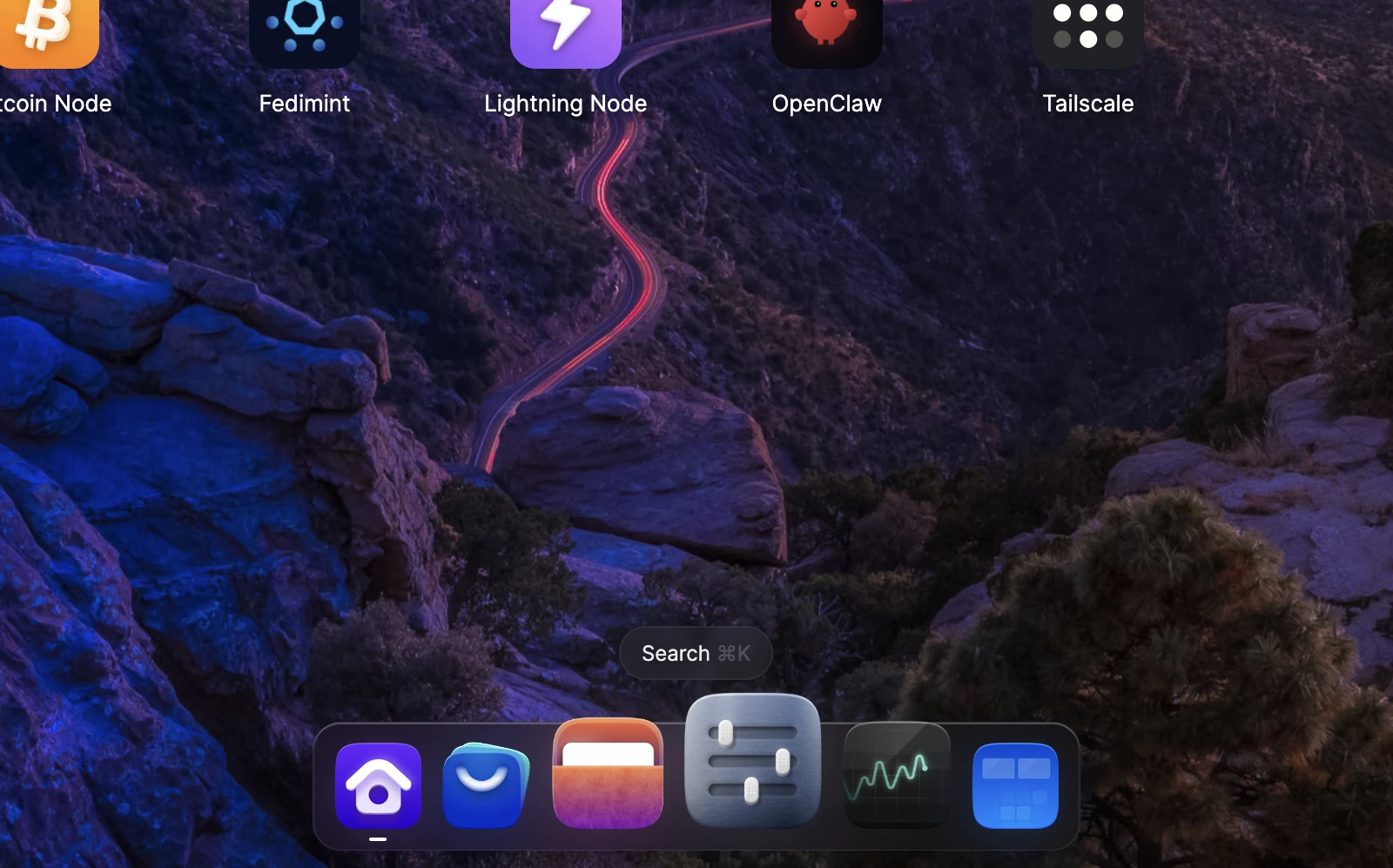
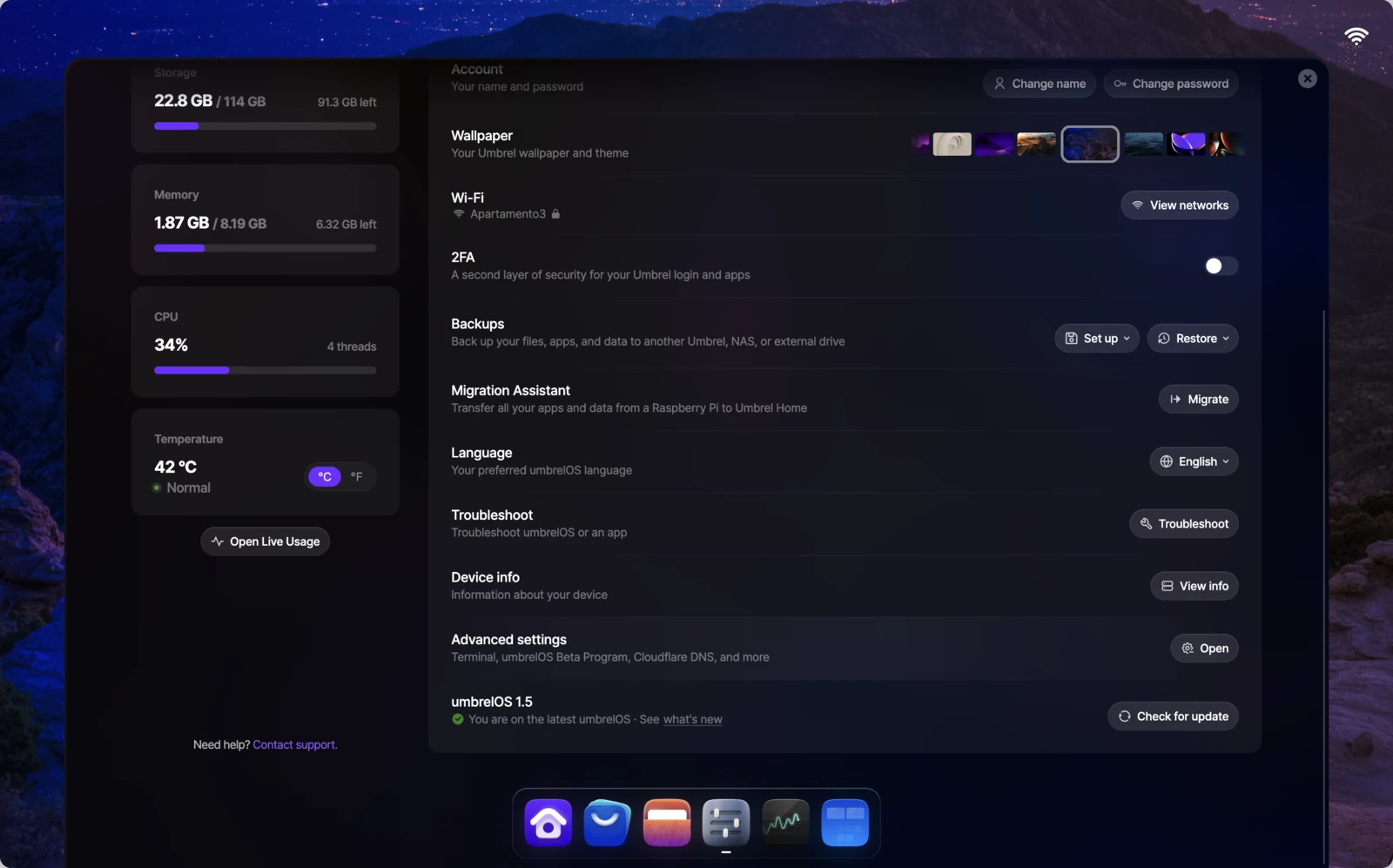
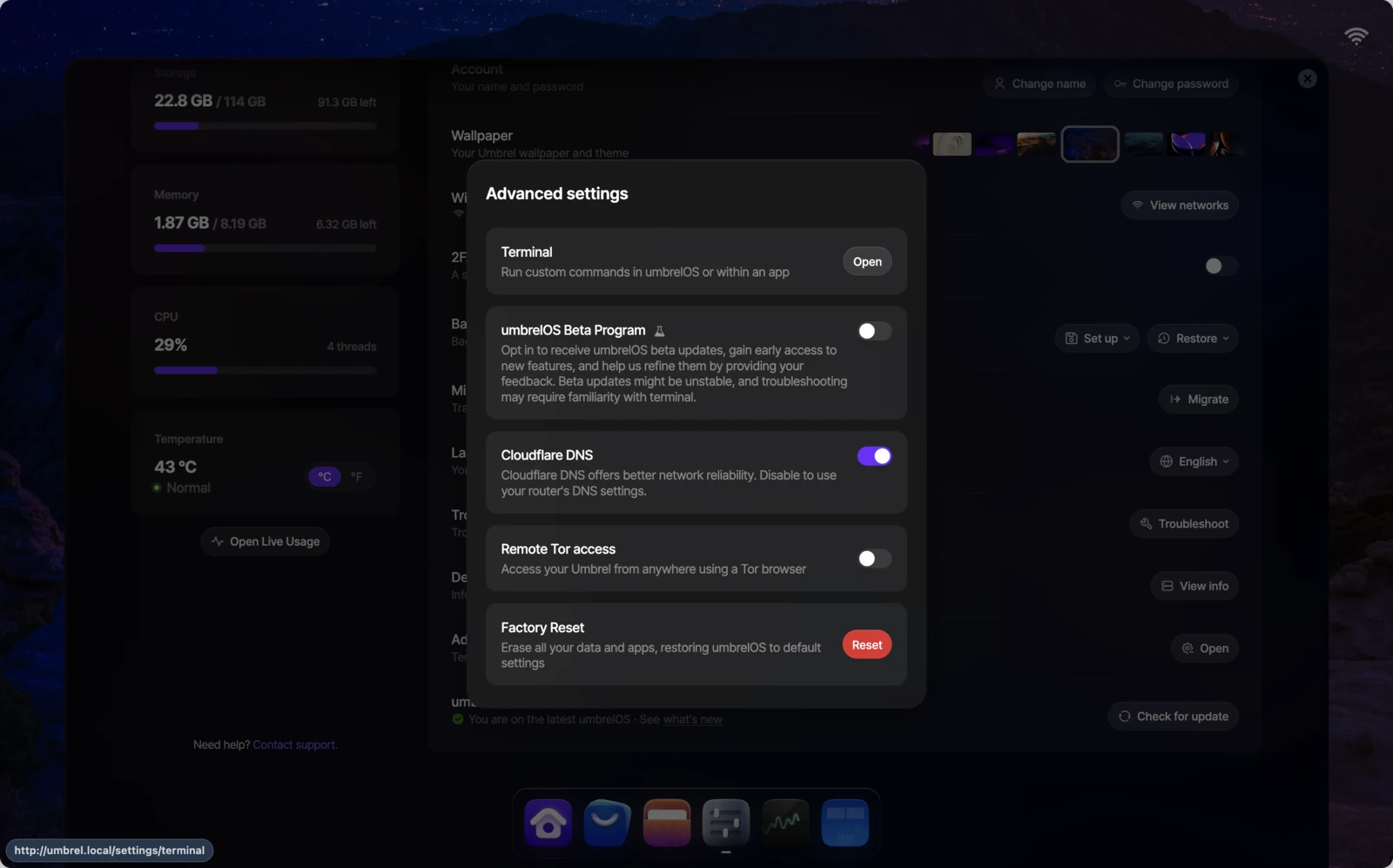
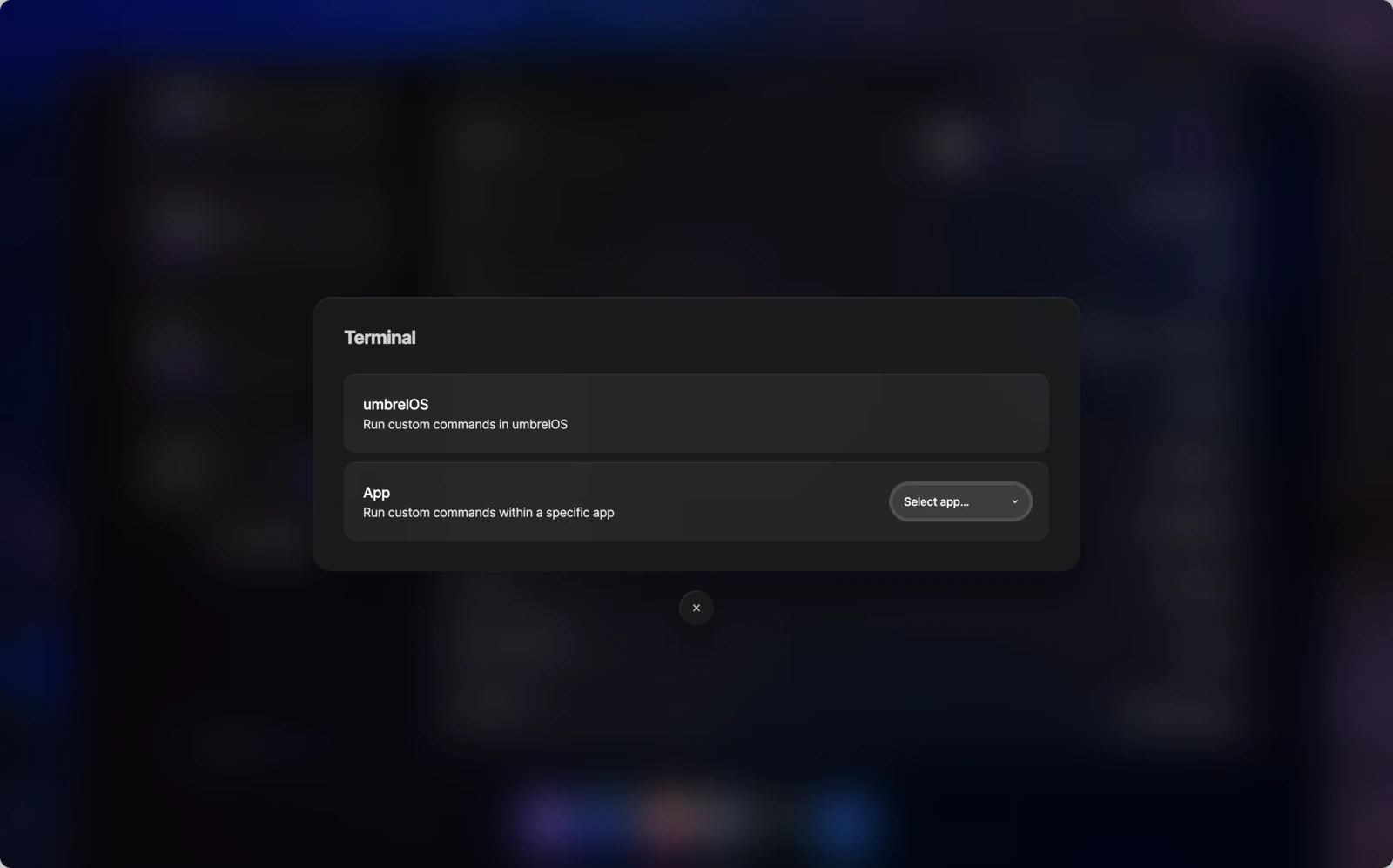
Open Settings from the dock, scroll to Advanced settings, click Open, then select Terminal. From here you can choose between two shell types.
Fedimint container shell
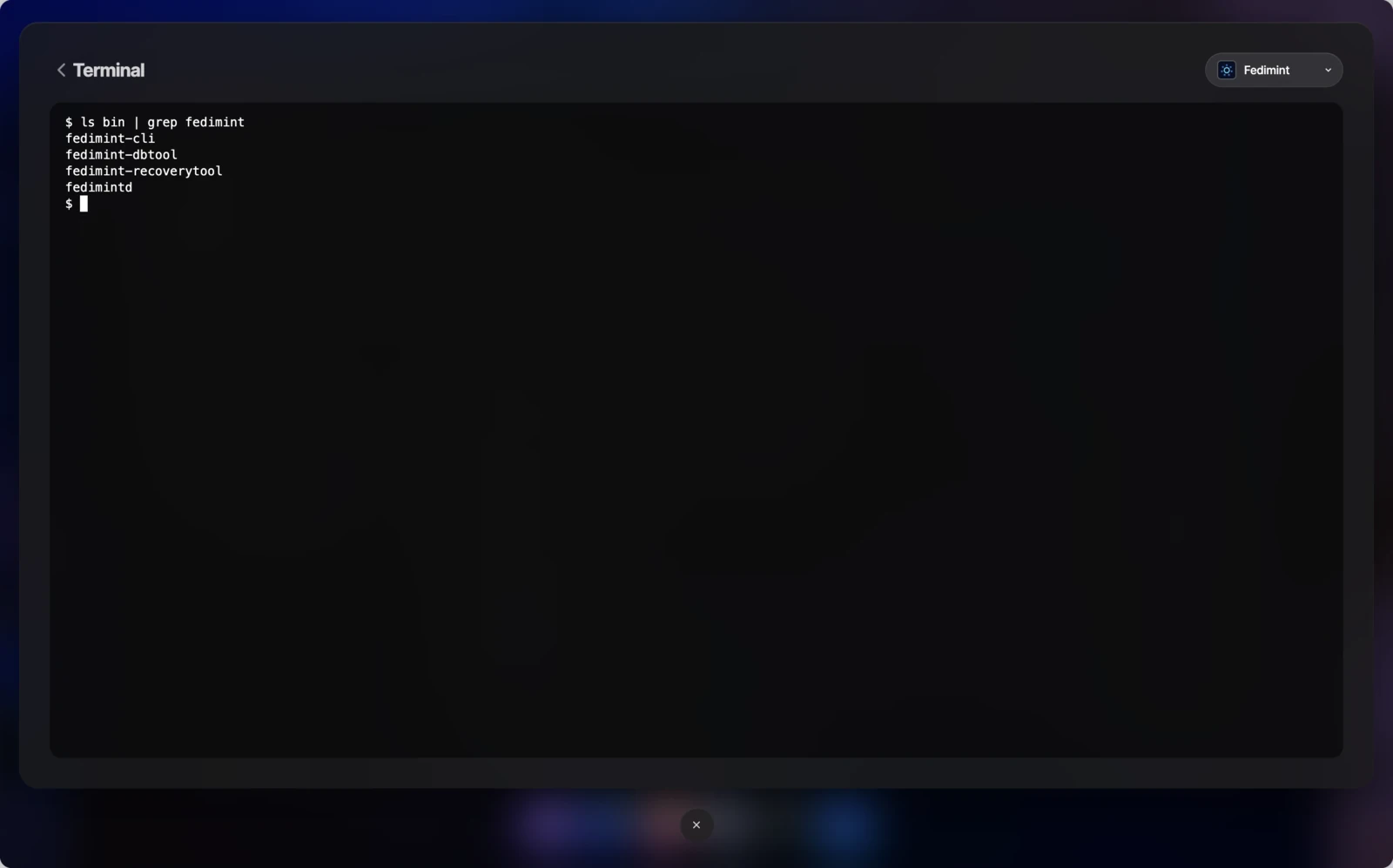
Select App and choose Fedimint from the dropdown. This opens a shell inside the container with access to fedimint-cli, fedimint-dbtool, fedimint-recoverytool, and more.
umbrelOS terminal
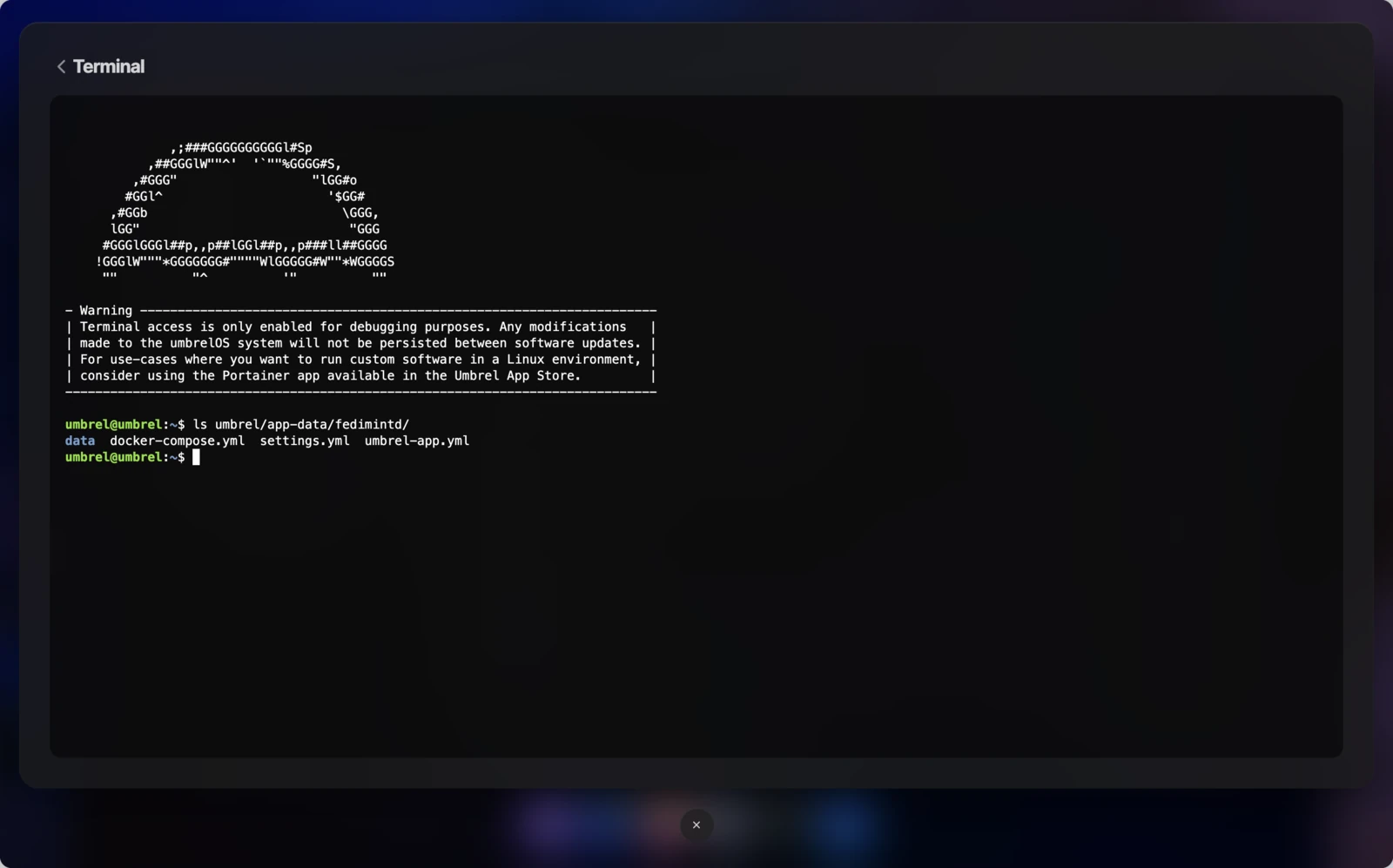
Select umbrelOS to get a system-level shell. Fedimint's data lives at ~/umbrel/app-data/fedimintd/.
You can edit umbrel/app-data/fedimintd/docker-compose.yml for more advanced customization. Add or override environment variables in the environment section of the fedimintd service — for example:
FM_ESPLORA_URL— use an Esplora API instead of the default Bitcoin Core RPC backendRUST_LOG— adjust log verbosity (e.g.RUST_LOG=info,fm::server=debug,fm::consensus=trace)
Note that updating or reinstalling Fedimint from the App Store will reset docker-compose.yml to its default — back up your changes before updating.